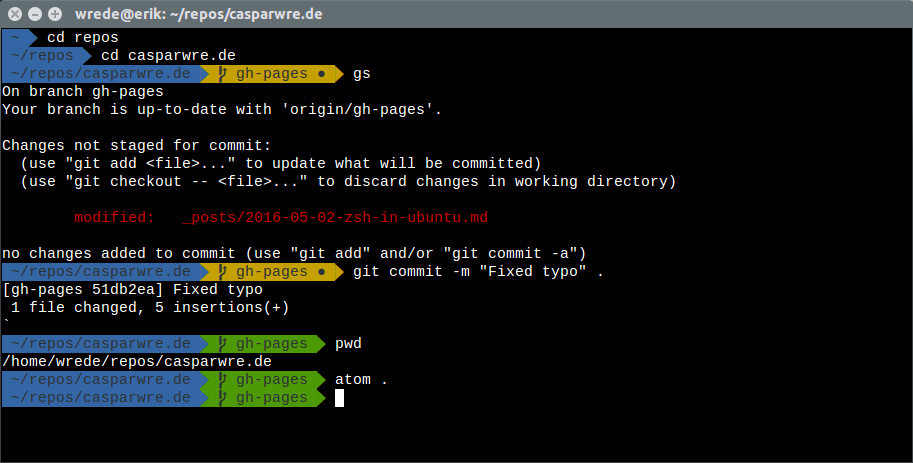
All the cool kids are using Z-shell (zsh) instead of bash these days. I won’t go into too much detail, other than saying:
- zsh has much better tab completion than bash
- it makes working with git much more pleasant and productive
- combined with Oh My Zsh you get themes, plugins and sensible defaults out of the box
Here’s how to install zsh, add Oh My Zsh, and get a good-looking theme working on Ubuntu. These steps work on every recent release — Ubuntu 24.04, 22.04 and 20.04 as well as older ones like 18.04 and 16.04 — because the package names haven’t changed.
1. Install zsh
sudo apt update
sudo apt install zsh git
Confirm it installed by checking the version:
zsh --version
2. Install Oh My Zsh
Oh My Zsh is a framework of themes and plugins that makes zsh far nicer to use:
sh -c "$(curl -fsSL https://raw.githubusercontent.com/ohmyzsh/ohmyzsh/master/tools/install.sh)"
The installer offers to set zsh as your default shell — say yes.
3. Set zsh as your default shell
If you skipped that prompt (or want to do it manually), run:
chsh -s $(which zsh)
Log out and back in for the change to take effect.
4. Install the Powerline fonts
Fancy themes like agnoster need the Powerline fonts to render arrows and icons correctly:
sudo apt install fonts-powerline
5. Choose a theme
Open ~/.zshrc and change the ZSH_THEME variable:
ZSH_THEME="agnoster"
Save the file and reload your shell with source ~/.zshrc (or just open a new terminal). You should now have a beautiful, productive z-shell.
Any questions? Do ask below.
Thanks for reading this 100% hand-written post! Follow me on LinkedIn for more or check out my projects.